

Stop copying UUIDs: browse Authdog identity scope
Navigate organizations, tenants, projects, and environments as one connected hierarchy with Authdog CLI.

Authdog Team
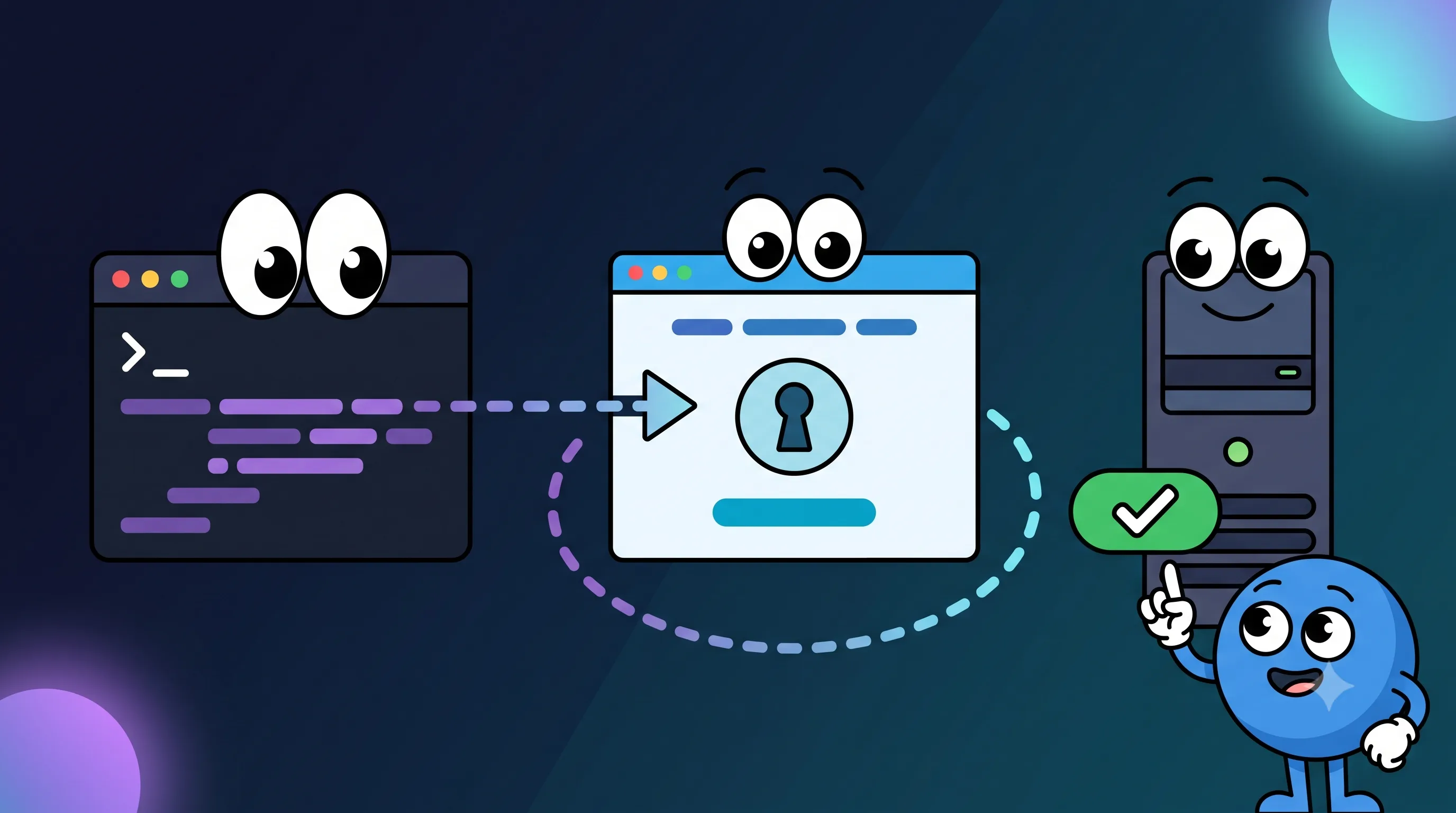
Identity platforms are full of nested resources, and nearly every API call needs one or more IDs pulled from that hierarchy. Copying those values between browser tabs, env files, and terminal commands adds friction, and it makes stale context genuinely hard to notice until something breaks.
Authdog CLI turns that hierarchy into a guided picker instead.
Open the navigator
Launch authdog-cli, sign in with /login, then type:
/browse/navigator is an alias for the same flow. The CLI walks you through four levels:
- Organization
- Tenant
- Project
- Environment
Each choice narrows what the next request can even ask for, and Escape takes you back a level, so fixing an earlier choice doesn't mean starting the whole flow over.
Accounts without organizations still work
Not every Authdog account belongs to an organization. When the organization list is empty, the navigator just skips that step and starts from the full list of available tenants instead.
For organization-backed accounts, the tenant results get filtered down to the selected organization, so a merged tenant response never ends up showing you resources that don't belong in that scoped view.
The full path gets saved
Once you select an environment, the CLI saves the whole path:
- organization ID, when there is one
- tenant ID
- project application ID
- environment ID
/status shows you that active selection later, and the CLI restores it on the next launch, so repeated exploration gets faster over time instead of starting from scratch every time.
Focused pickers, when the full flow is overkill
You don't always need the whole navigator. These commands open individual parts of the hierarchy directly:
/organizationsor/orgsselects an organization./tenantsselects a tenant./tenantshows the active tenant./tenant <uuid>selects a validated tenant directly./tenant clearremoves tenant scope./projectsselects a project for the current tenant.
/projects needs an active tenant first, since project listings are tenant-scoped by nature.
Read-only, on purpose
The beta navigator only selects existing resources. It won't create tenants, promote environments, or touch project configuration. That keeps it useful as a context browser and debugging tool, while management operations stay outside the current CLI surface for now.
One connected hierarchy takes most of the mechanical work out of identity exploration: choose what you mean, confirm it with /status, and keep moving.